

Onboard a facility
Register the facility license, request access, and retrieve NTMP accounts.
Search for NTMP Onboarding. Complete the five steps below after configuring the connection.
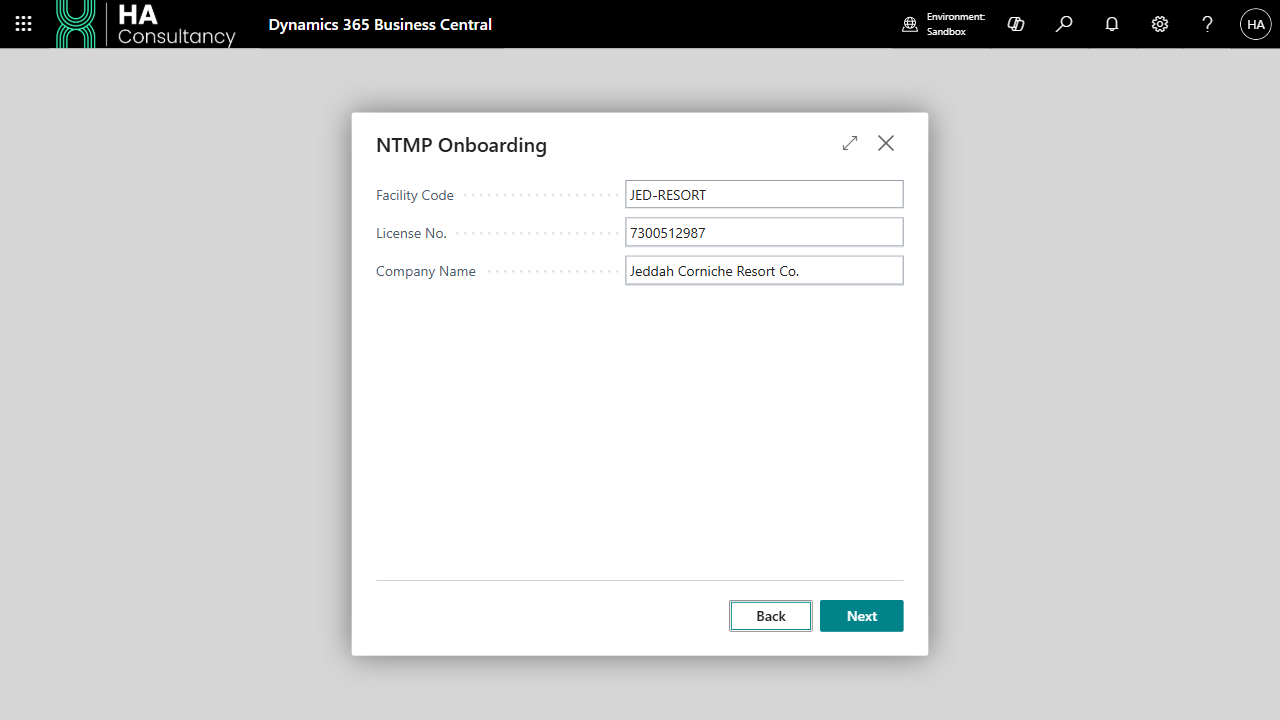
License
Enter:
- Facility Code: a short internal identifier, such as
RYD-HOTEL(up to 20 characters). - License No.: the Ministry of Tourism license number (up to 20 characters).
- Company Name: the company or property name.
Choose Next to create the facility record.
Request Access
Choose Next to submit the access request. The facility owner must approve it through their ministry portal. The facility status becomes Access Requested.
Wait for that approval before attempting to save the facility credentials.
Facility Credentials
Obtain the Facility Id and Facility Secret from the facility's developer portal setup after approval. Paste them into the corresponding fields and choose Next.
The secret is masked in the wizard. Both values are sent to the HA integration server for encrypted storage and are cleared from the wizard after a successful save. The facility status becomes Credentials Saved.
Chart of Accounts
Choose Next to retrieve the ministry chart of accounts. Business Central stores the account numbers, English and Arabic names, node types, root types, normal balances, and active flags for use in mapping.
The status becomes Chart of Accounts Pulled.
Map & Finish
Choose Next to close the wizard. Follow account mapping, then run NTMP Mapping Complete from Chart of Accounts.
Closing the wizard alone does not activate automatic synchronization.
Resume onboarding
Reopen the wizard, enter the existing Facility Code and a nonblank License No., then choose Next. For an existing facility, the wizard loads the saved license and company name and resumes based on its onboarding status.
| Saved status | Step shown after resuming |
|---|---|
| Not Started | Request Access |
| Access Requested | Facility Credentials |
| Credentials Saved | Chart of Accounts |
| Chart of Accounts Pulled | Map & Finish |
| Mapped - Complete | Map & Finish |
Replace credentials or refresh accounts
Resume the existing facility, then use Back to reach the step you need. To replace credentials, return to Facility Credentials. To retrieve updated accounts, return to Chart of Accounts.
After saving credentials again, continue through account retrieval and run NTMP Mapping Complete again. These operations move the facility back through its onboarding statuses; confirm it returns to Mapped - Complete before relying on automatic queueing.